Calling Analytics
Call Analytics gives you a complete view of your team’s calling activity and performance. Track trends, measure volume, and understand how your team is engaging with customers over time.
Written By Jill Berkowitz
Last updated 11 months ago
To enable Analytics for your team, contact sales@clerk.chat. You can access Call Analytics by going to Analytics in the sidebar, then selecting the Calls tab.
Call Overview - a snapshot of your call activity
total calls
total duration
number of outgoing calls
number of incoming calls
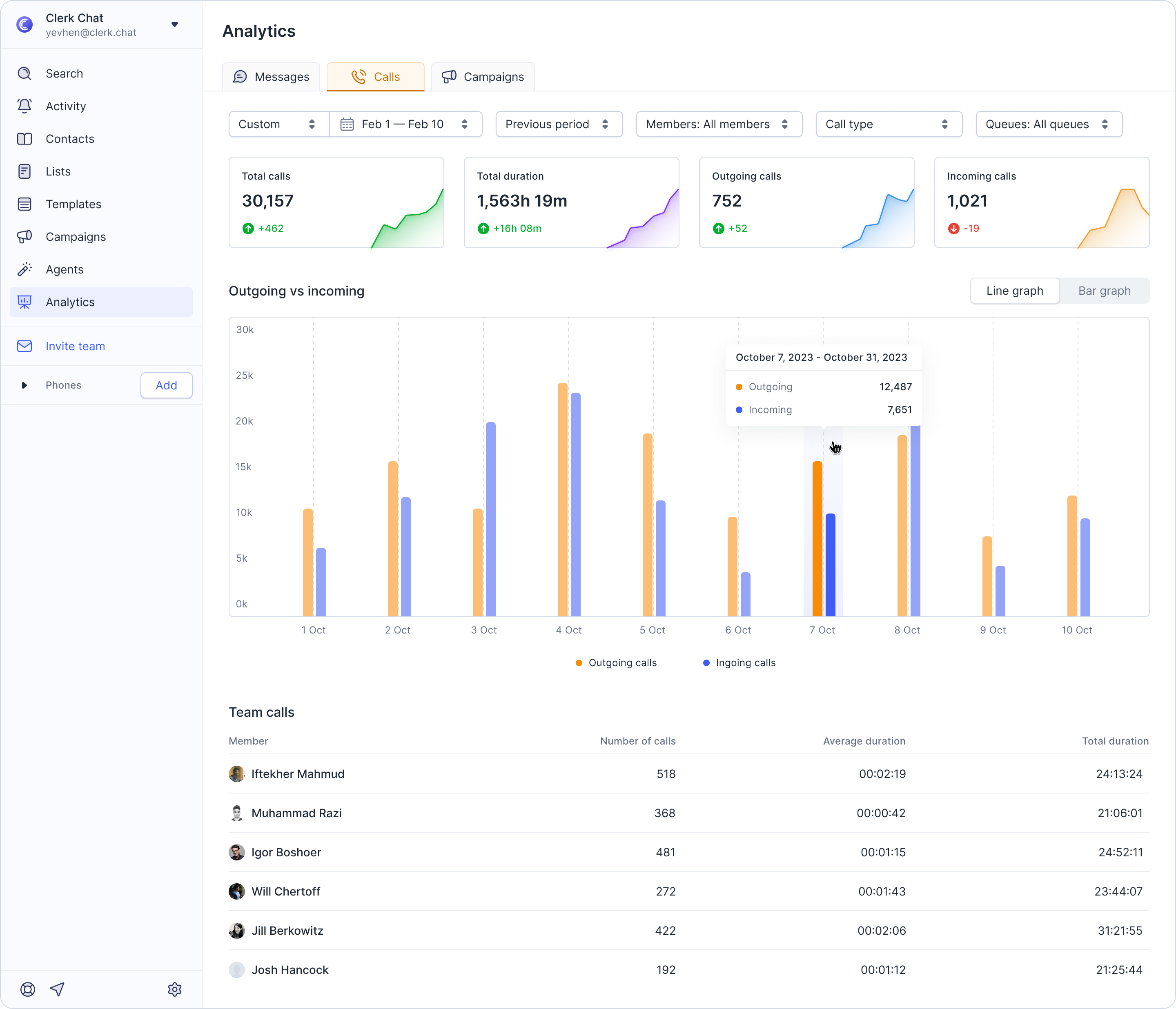
Choose how you want to visualize the data, as a line graph or bar graph, for clearer trend analysis.
Team Call Breakdown: See a detailed list of calls organized by team member.
For each member, you’ll find:
Number of calls
Average duration
Total duration
This makes it easy to identify high-volume users, monitor call efficiency, and track workload distribution across your team.
Filters and Comparisons
Customize your view by:
Time Filters
Today
Last 7 days
Last 4 weeks
Last 3 months
Last 12 months
Or choose a custom date range
Comparisons: Compare your selected range to the previous period or previous year to spot trends and measure growth or improvement over time.
Members: View call data for all members, or narrow down to specific individuals or groups for focused reporting.
Call type:
User inbound
User outbound
Call queue
If your workspace uses call queues, you can even select a specific queue to see data for that group alone.
Watch a video tutorial
Was this helpful?
Still need help? Share an idea