10DLC Registration: Your Complete Setup Guide
Everything you need to know to register your brand, verify your business, and start sending compliant SMS messages through Clerk Chat.
Written By Josh Hancock
Last updated 6 months ago
Welcome
Before your business can send SMS messages to phone numbers in the United States, you need to register with The Campaign Registry (TCR). This is a one-time process that U.S. carriers require from every business sending application-to-person messages, and it is the foundation of reliable, compliant messaging.
Clerk Chat handles the submission for you. This guide walks you through every step exactly as it appears in your workspace, so you know what to expect and can move through the process with confidence.
⚠️ Important
Until your registration is approved, your messages will not be delivered. Plan to complete this process before you intend to send your first message
The Big Picture
Registration takes place in three short steps inside Clerk Chat, all completed in a single session:
Your Company Information. Fill out your business details.
Identity Verification. Confirm your business identity through Stripe Identity.
Opt-in Consent. Review and share the consent widget Clerk Chat creates for you.
After you click Submit at the end of step three, Clerk Chat sends your registration to TCR on your behalf. Approval typically takes a few business days, or about 48 hours if you choose the optional expedited path.
Who can complete this?
Only users with Workspace Owner or Admin permissions can submit a brand registration. If you do not see the Company Registration option in your settings, your workspace owner can either grant you the right permissions or complete the registration on your behalf.
What you will need before you start
Gathering these items in advance will make registration go smoothly:
Your 9-digit Employer Identification Number (EIN). Canadian businesses can use the first 9 digits of their Business Number.
Your company's full legal name, exactly as it appears on official documents.
Your registered business address, including the 2-character state or province code.
A contact email address on the same domain as your Clerk Chat account.
Your company website URL.
A government-issued photo ID for Stripe Identity verification.
About 15 minutes of focused time.
Finding the Registration Flow
There are two simple ways to reach the registration page.
Option 1: The pink banner
When you log in to a workspace that has not yet been registered, you will see a pink banner at the top of every page that reads:
Your company is required to register for 10DLC. Learn more →
Click Learn more → to jump straight to the Company Registration page.
Option 2: Through Settings
Click the gear icon in the bottom-left corner of any page to open Settings.
In the left sidebar under Workspace, click Company Registration.
You will land on the Company Registration for 10DLC page. A red dot may appear next to Company Registration in the sidebar. That is normal at this stage and simply means registration is still required.
The Onboarding Checklist
If you visit your onboarding progress page, you will see a Welcome to Clerk Chat! screen with four setup steps:
Register Your Brand. Register for 10DLC so your SMS is compliant, secure, and optimized for deliverability.
Add your phone. Bring in your existing phone number to enable messaging.
Add an integration. Connect your contacts in a few clicks.
Workspace information (optional). Update basic workspace details.
💡 Heads up
Step one must be complete before step two becomes available. The phone setup flow is locked until your 10DLC registration is approved.
1️⃣ Your Company Information
On the Company Registration page, you will see Step 1 of 3: Your Company Information. All fields on this form are required.
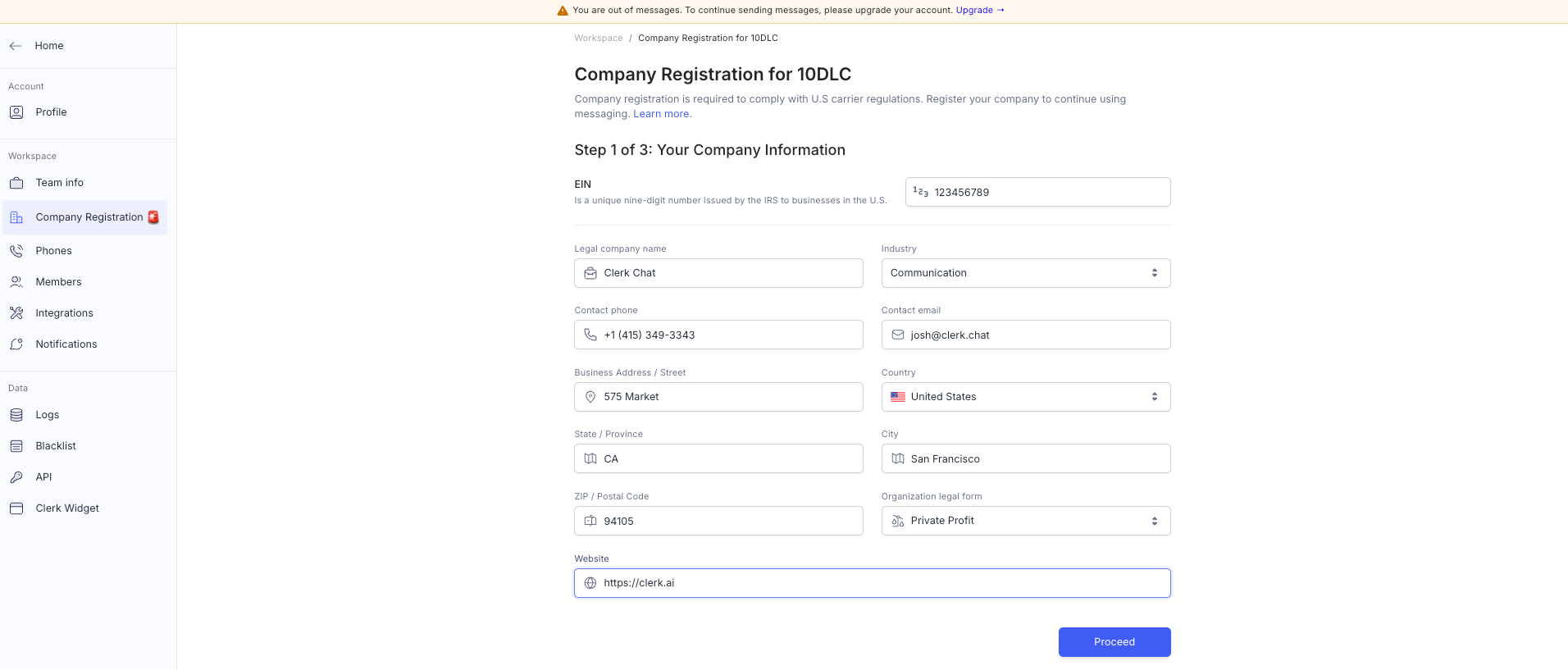
Field-by-field guide
ℹ️ About the dropdowns
The Industry, Country, and Organization legal form fields are custom dropdown menus. Click into the field to open the list, then click the option you want. They do not behave like standard browser dropdowns.
ℹ️ About the dropdowns
The Industry, Country, and Organization legal form fields are custom dropdown menus. Click into the field to open the list, then click the option you want. They do not behave like standard browser dropdowns.
Industry options
Pick the industry that most closely fits your business:
Agriculture
Communication
Construction
Education
Energy
Entertainment
Financial
Gambling
Government
Healthcare and Life Sciences
Hospitality
Insurance
Legal
Manufacturing
Non-Profit
Political
Postal
Retail
Technology
Transportation
Organization legal form options
Private Profit. For-profit private companies, including LLCs and corporations.
Non Profit. Non-profit organizations.
Government. Government agencies and other public entities.
When all fields are complete, click Proceed to continue to the next step.
A quick decision: should you expedite?
Right after you click Proceed, Clerk Chat may show you a modal offering to expedite your registration:
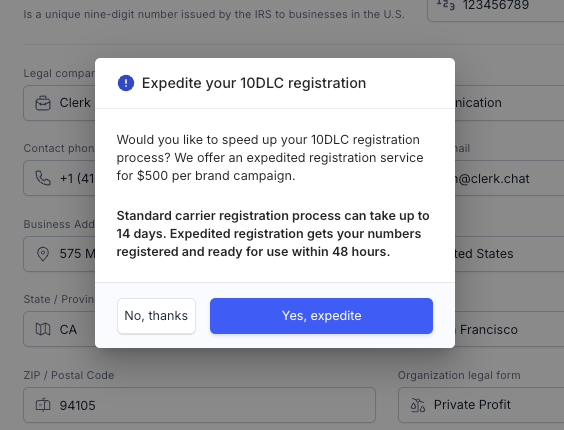
Standard registration through TCR can take up to 14 days. Expedited registration is $500 per brand campaign and gets your numbers ready for use within roughly 48 hours.
Click Yes, expedite to fast-track your registration, or No, thanks to continue with the standard timeline. Either way, you will move on to the next step.
💡 When does it make sense to expedite?
Expediting is worth the $500 if you have a launch date, an active campaign waiting to go out, or customer-facing communications that depend on SMS being live. If you are still setting things up and have flexibility on timing, the standard path is usually fine. You can always come back and expedite later if your timeline changes.
2️⃣ Identity Verification
Step 2 confirms that you are who you say you are. This step is powered by Stripe Identity, a secure third-party verification service. The page reads:
Your team must complete identity verification before sending messages. This process is powered by Stripe Identity and typically takes a few minutes.
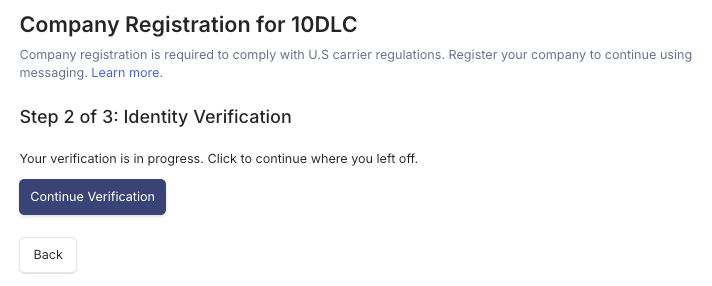
Click Start Verification to launch Stripe Identity. You will be guided through a short flow:
Agree to share verification data with Clerk Chat.
Take a photo of a valid government-issued photo ID.
Take a quick selfie so Stripe can confirm the ID belongs to you.
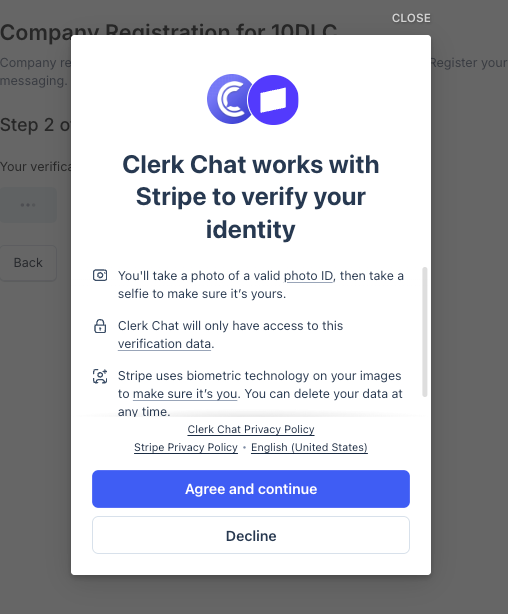
Stripe handles the verification end-to-end and shares only the result with Clerk Chat. Clerk Chat does not see your ID photo or selfie at any point.
📱 Tip: switch to your phone for the camera step
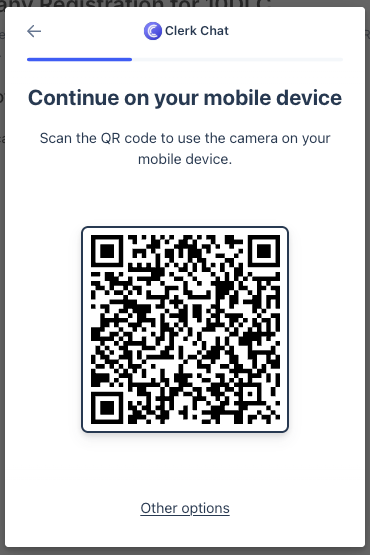
If you started on a desktop, Stripe will offer a QR code so you can finish the photo and selfie steps on your mobile device. The verification will sync back to your computer automatically.
Verification statuses you may see
Depending on where you are in the flow, your screen will show one of the following:
Once your status shows Verification Complete, you are ready to move on to step 3.
⚠️ If Stripe rejects your verification
Common causes are blurry photos, glare on the ID, or a background that blends with the document. Try again in better lighting, hold the ID flat against a plain contrasting surface, and use the highest resolution camera you have available. If you still cannot get past this step, contact support for assistance.
3️⃣ Opt-in Consent
Step 3 introduces your opt-in widget, a hosted page Clerk Chat creates for you that collects messaging consent from your customers.
At the top of this screen you will see a short message from Clerk Chat:
We have submitted your Brand Registration on behalf of your company to comply with carrier requirements. The included messaging privacy policy and language are crafted to align with carrier regulations. In some rare cases, your legal team may want to modify the language with a pre-existing privacy policy. Please reach out to support so that we can assist.
Below that, an info box reminds you of your responsibility:
Share the widget URL with customers to collect messaging consent. You are responsible for obtaining opt-in before sending messages.
[Screenshot: The Step 3 page, with your opt-in widget link and a Submit button.]
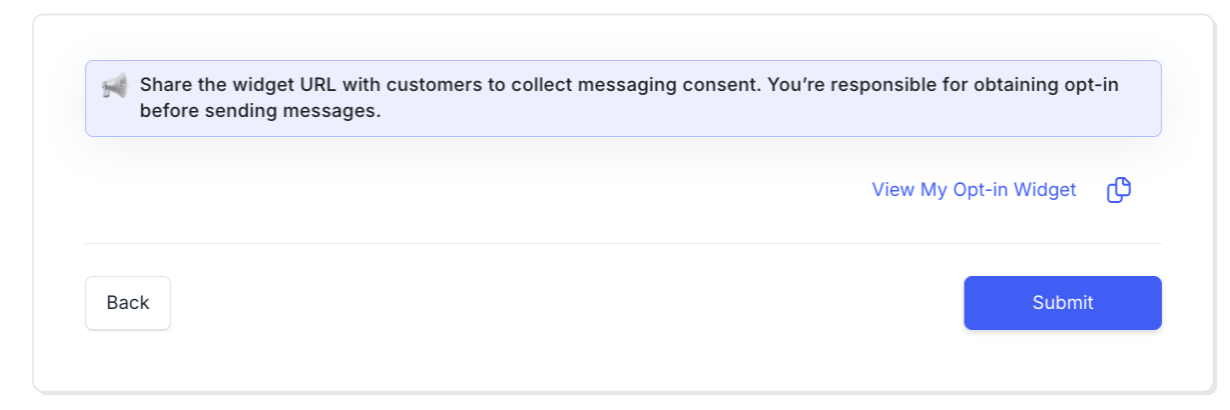
On this page you will see:
View My Opt-in Widget. A link that opens your unique opt-in page in a new tab so you can preview it.
A copy icon next to the link, so you can copy the URL to your clipboard.
A Back button to return to the previous step if needed.
A Submit button to finalize your registration and send it to TCR.
What your customers will see
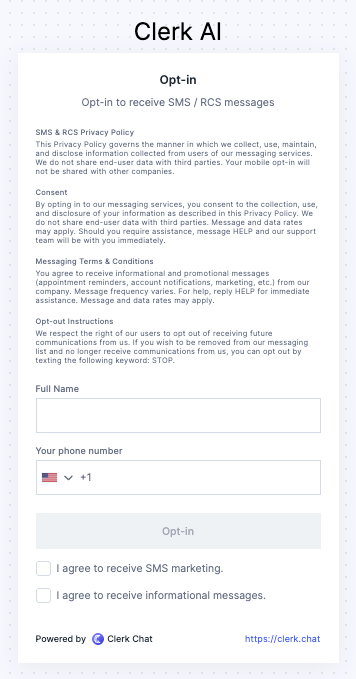
When customers visit your opt-in widget URL, they land on a branded page titled with your company name. The page contains:
SMS & RCS Privacy Policy. How you collect, use, and protect their data.
Consent. What they are agreeing to when they opt in.
Messaging Terms & Conditions. Message frequency, HELP replies, and data rate notes.
Opt-out Instructions. How to stop messages by texting STOP.
A Full Name field.
A Phone number field with a country code selector (defaults to +1 US).
An Opt-in button.
Two checkboxes: I agree to receive SMS marketing. and I agree to receive informational messages.
A Powered by Clerk Chat footer.
Putting your opt-in widget to work
U.S. carriers require proof that every recipient has actively consented to receive your messages. Your opt-in widget is how you collect and document that consent. You must collect opt-in before sending any messages.
Common ways to share the widget URL:
Include it in onboarding emails or welcome sequences.
Add it to your website footer or contact forms.
Embed it directly on a public-facing page using the code snippet Clerk Chat provides.
Link to it from any form where customers give you their phone number.
Add it to your account settings page so existing customers can opt in later.
📒 A note on record-keeping
Keep records of when each customer opted in. Clerk Chat stores opt-ins automatically when they come through your widget URL. If you collect consent another way (a checkbox on a form you host yourself, for example), make sure you can prove the date and time consent was given if a carrier ever asks.
When you are ready, click Submit to send your registration to TCR.
After you submit
After you click Submit, Clerk Chat automatically forwards your brand registration to TCR. There is nothing more for you to do at this stage.
While you wait
The Company Registration item in the left sidebar will continue to show a status indicator.
Clerk Chat will notify you the moment your registration is approved, or if any further action is needed.
⏱️ Timeline
Standard review typically takes a few business days. Expedited registrations are usually completed within 48 hours.
Registration status reference
Use this quick reference to interpret what you see in your workspace:
❌ If your registration is denied
The red dot will remain on Company Registration in the sidebar. Return to the Company Registration page and resubmit with corrected information. If you would like help understanding why the submission was rejected, contact support and we will walk you through it.
Once you are approved: add your phone number
When your registration is approved, you can connect a phone number and start messaging. Note that the phone setup flow stays locked until 10DLC registration is approved, so if you try to add a number before approval, the app will prevent you from continuing.
Go to Settings → Phones.
Click + Add phone in the top-right corner, or click + Connect in the empty state.
Follow the setup flow to bring in an existing number or provision a new one.
Frequently asked questions
Do I need to register if I only text employees internally?
Yes. Any application-to-person (A2P) SMS, including messages to employees, counts as a campaign under carrier rules and requires 10DLC registration.
My company is based in Canada. Do I still need to register?
Yes, if you send SMS to U.S.-based phone numbers. Enter the first 9 digits of your Business Number (BN) in the EIN field.
I got an error that says "State / Province must be at most 2 characters." What do I do?
Enter the 2-character abbreviation for your state or province instead of the full name. For example, use TX instead of Texas, or FL instead of Florida.
What is Stripe Identity, and why is verification required?
Federal messaging regulations require every business to verify its identity to remain compliant. Stripe Identity is a secure, third-party service that confirms your business is legitimate. The process typically takes a few minutes.
What documents will Stripe Identity ask for?
Stripe will guide you through what is needed during the verification flow. In most cases this means a government-issued photo ID and, sometimes, supporting business documents.
What is the opt-in widget, and why do I need it?
U.S. carriers require businesses to prove that every message recipient has actively consented to receive texts. The opt-in widget is a Clerk Chat-hosted page that handles this for you. It presents your privacy policy and lets contacts formally opt in.
Can my legal team edit the opt-in language?
The opt-in messaging is pre-written to meet carrier compliance requirements. If you need custom language, contact support before submitting your registration.
What happens if I do not register?
Carriers will block your messages. Your contacts will not receive any texts sent from your Clerk Chat workspace until your registration is approved.
Where can I get help?
Use the Need help? Contact support link at the bottom of the onboarding checklist page inside Clerk Chat.
Quick-start checklist
A short, scannable version of the steps in this guide. Print it, save it, or work through it in your browser.
Log in as a Workspace Owner or Admin.
Click Learn more → in the top banner, or go to Settings → Company Registration.
Fill out every field in Step 1, using the 2-character abbreviation for State / Province.
Decide whether to expedite (optional, $500) when the modal appears.
Complete identity verification through Stripe Identity in Step 2.
Review your opt-in widget in Step 3, and copy or share the URL with your customers.
Click Submit to send your registration to TCR.
Wait for Clerk Chat to notify you of approval.
Once approved, go to Settings → Phones and add your phone number.
Start messaging.
Questions, edge cases, or stuck on a step?
Contact support any time. We are happy to help you get registered and sending as quickly as possible.
Was this helpful?
Still need help? Share an idea