Group Messaging
Group messaging lets you send a single message to multiple people at once and keep everyone’s replies visible in the same thread. It’s great for quick updates, reminders, or coordinating with a team.
Written By Alexander Haque
Last updated 12 months ago
⚠️ Important: Group messages can include up to 10 phone numbers. If you need to message more than 10 recipients, use the Campaigns feature instead.
How to send a group message
Make sure you’re in the correct workspace and inbox (phone number) before starting.
Click New Message from your inbox.
Add recipients
You can:Select an existing list
Manually type in numbers or contacts
Copy and paste numbers from a CSV or spreadsheet
Type your message or use a template you’ve already created.
Choose to send right away or schedule it for later.
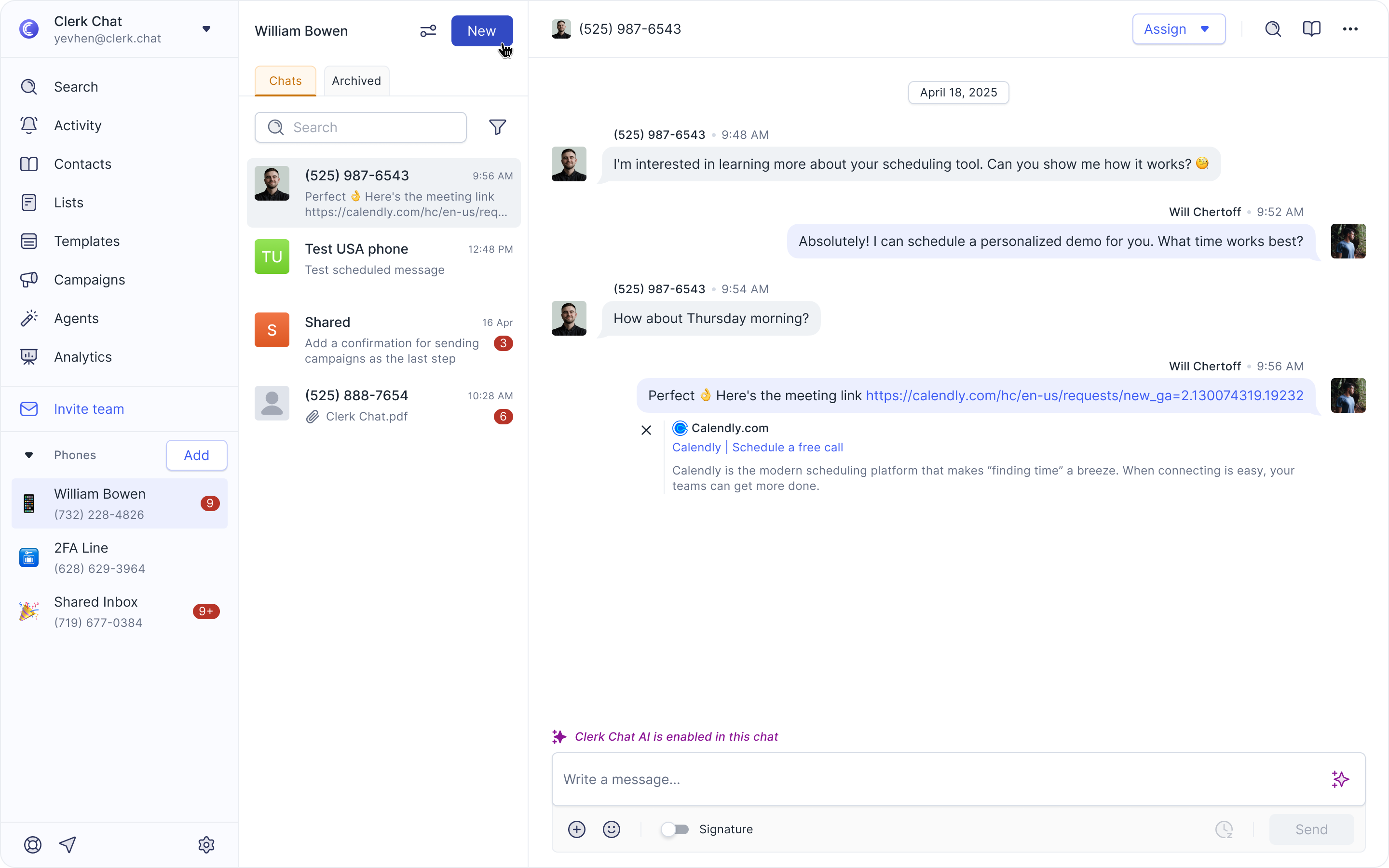
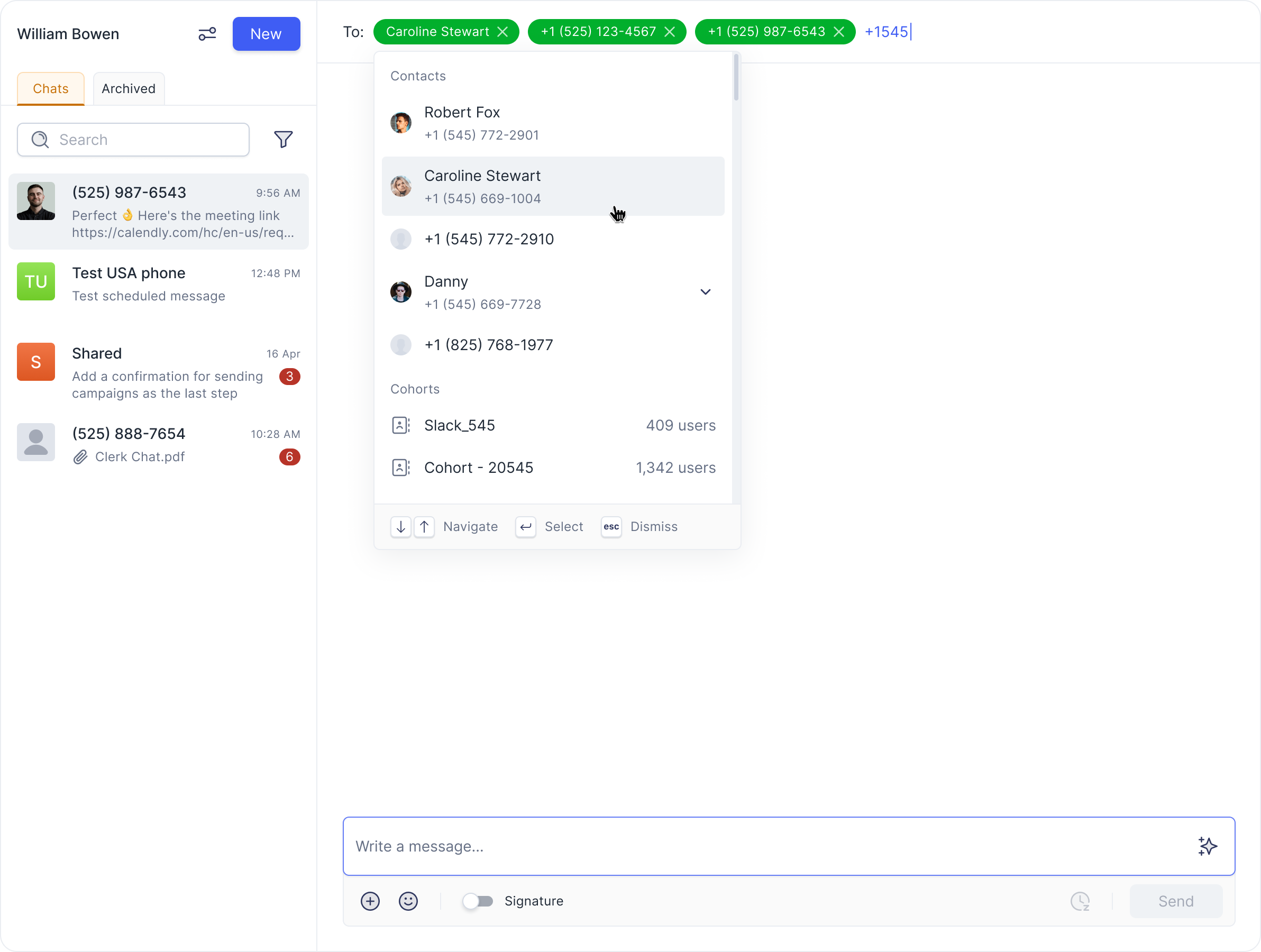
When recipients reply, everyone in the group can see the responses in the same conversation thread, just like a group text.
If you’d prefer for responses to stay private and individualized, or need to reach more than 10 recipients, use the Campaigns feature instead.
ℹ️ Note: Carriers allow a maximum of 10 phone numbers in a group message. If the group exceeds 10 numbers, it must be sent as a campaign. Additionally, some carriers used by the end customer may not support group messaging, causing replies to appear as individual conversations.
Was this helpful?
Still need help? Share an idea