Genesys Cloud: BYOC Setup for Clerk Chat
Follow the steps below to leverage Clerk Chat AI directly in your Genesys Cloud instance
Written By Will Chertoff
Last updated About 1 year ago
Overview
This guide explains how to connect Genesys Cloud to your Bring Your Own Carrier (BYOC) trunk and route calls to Clerk Chat. You'll create a Generic BYOC Carrier trunk in Genesys Cloud with digest authentication and required headers, assign numbers, and verify connectivity. Clerk Chat Support will provide your SIP address and any required SIP/FQDN details for your environment.
Prerequisites
Genesys Cloud org with BYOC enabled and admin access to Trunks
A Genesys Cloud Architect inbound flow (or target queue/user) to receive calls
Clerk Chat Support-provided SIP address (realm/FQDN) and auth credentials for your environment (staging/production)
email support@clerk.chat for this information
Section 1 — Genesys Cloud Configuration
1) Create a BYOC Trunk
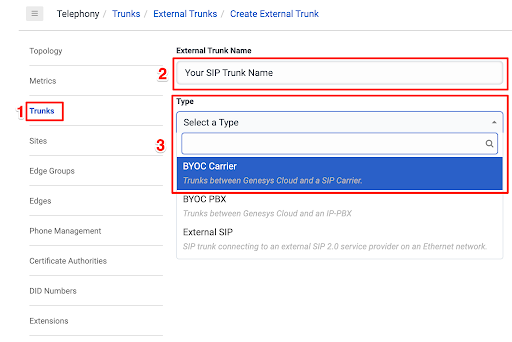
Genesys Admin → Trunks → Create trunk
Type: BYOC Carrier → Subtype: Generic BYOC Carrier
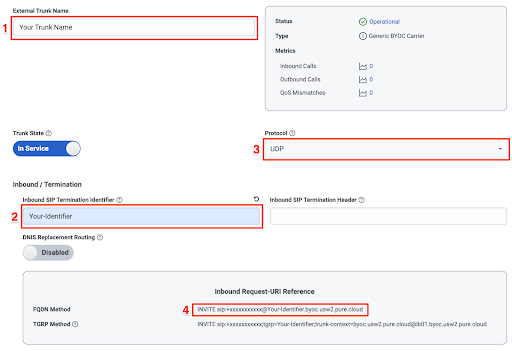
Name: Clerk Chat – BYOC Trunk
Inbound SIP Termination Identifier: Use the identifier name provided by Clerk Chat Support (this must match the value Clerk supplies)
2) SIP Servers and Proxies
Add the SIP server(s) provided by Clerk Chat Support for your region/environment
3) Authentication
Enable Digest Authentication
Realm: Set to the SIP address provided by Clerk Chat Support
Username/Password: Use the exact credentials provided by Clerk Chat Support
4) Caller ID
Set the outbound Caller ID to a number assigned to your organization (aligned with your brand and CNAM policies)
5) SIP Access Control
Add the IP addresses or ranges provided by Clerk Chat Support
6) External Trunk Configuration → Protocol → Outbound
If instructed by Clerk Chat Support, add any custom SIP headers required (for example, an account or username header). Your support ticket will specify exact names and values.
7) Routing to Clerk Chat
Inbound: Route your DID(s) in Genesys Architect to the appropriate flow/queue where Clerk Chat will handle the call.
Outbound: Ensure your dial plan uses this BYOC trunk for external calls initiated by Clerk Chat workflows/agents.
Section 2 — Verification
Place an inbound test call to confirm it reaches your Architect flow and is handled by Clerk Chat as expected.
Place an outbound test call to verify the BYOC trunk authenticates successfully and presents the correct Caller ID
Was this helpful?
Still need help? Share an idea